Upgrade ERPNext version 15 to 16 with this complete guide designed for businesses, IT teams, and ERP administrators. Upgrading from ERPNext v15 to v16 brings significant improvements: 2x faster performance, customizable financial statements, enhanced manufacturing features, and a completely redesigned workspace. But a successful upgrade requires careful planning and execution.
This comprehensive guide walks you through every step of upgrading ERPNext from version 15 to version 16, whether you’re managing the upgrade yourself or working with an implementation partner.
If you’re planning a DIY upgrade, make sure you review our ERPNext v15 to v16 upgrade guide before starting.
Why Upgrade to ERPNext Version 16?
Before diving into the technical process, it’s important to understand why most businesses are planning to upgrade ERPNext version 15 to 16 this year. For a full breakdown of all new features, see our complete ERPNext version 16 release notes.
Performance Improvements
2x Faster Performance: Built on Frappe Framework v16’s Caffeine architecture, which delivers approximately 2x performance improvements across the board:
- Faster page loads
- Quicker report generation
- Smoother list view rendering
- Reduced server resource consumption
For businesses processing hundreds of transactions daily, this performance boost translates to real productivity gains. To take advantage of all these improvements, it’s important to upgrade your ERPNext installation to v16.
Financial Management Enhancements
Customizable Financial Statements: The biggest accounting improvement in years. You can now:
- Customize balance sheets and P&L statements to match your business structure
- Create industry-specific financial reports
- Adjust report layouts without custom code
- Generate consolidated financial statements across multiple companies
Enhanced Budgeting: Better budget tracking, variance analysis, and multi-dimensional budgeting capabilities.
Refactored TDS (Tax Deducted at Source): Simplified Indian tax compliance with improved TDS calculation and reporting.
Manufacturing & Inventory Upgrades
Inward Subcontracting: Track materials sent to subcontractors and finished goods received back, with full inventory visibility.
Stock Reservation: Reserve inventory for specific sales orders or projects, preventing overselling and improving fulfillment accuracy.
Enhanced MRP: Smarter material requirement planning with better demand forecasting and procurement suggestions.
You can access these enhanced manufacturing features by upgrading to ERPNext v16.
User Experience Improvements
Redesigned Workspace: Modern, intuitive interface with improved navigation and customizable module cards.
Enhanced List Views: Scrollable, resizable columns that can display unlimited fields without performance degradation.
Role-Based Field Masking: Automatically mask sensitive fields (salary, bank details, etc.) based on user permissions.
Before You Begin: Pre-Upgrade Checklist
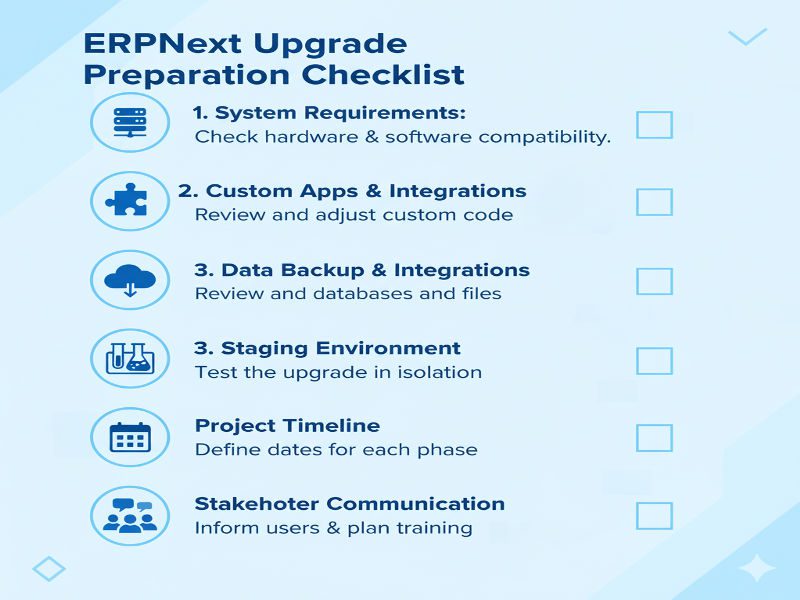
A successful upgrade starts with thorough preparation. Complete this checklist before touching your production system.
1. Review System Requirements
Server Requirements for ERPNext v16:
- Operating System: Ubuntu 20.04 LTS or 22.04 LTS (recommended)
- Python: 3.10 or higher
- Node.js: 18.x or higher
- MariaDB: 10.6 or higher
- Redis: 6.x or higher
- RAM: Minimum 4GB (8GB+ recommended for production)
- Storage: At least 20GB free space for upgrade process
Check your current versions:
bench version
python3 --version
node --version
mysql --version
redis-server --version
If your server doesn’t meet these requirements, you’ll need to upgrade your infrastructure first. For detailed server specs and deployment guidance, review our complete ERPNext hosting requirements.
2. Audit Custom Apps and Customizations
List all installed apps:
bench --site [your-site-name] list-apps
Document your customizations:
- Custom DocTypes
- Custom fields added to standard DocTypes
- Custom scripts (client scripts, server scripts)
- Custom reports
- Custom print formats
- Workflow customizations
- Custom integrations
Test custom app compatibility: Contact the developers of any third-party apps to confirm v16 compatibility. Most well-maintained apps will have v16-compatible versions ready by the final release date (December 6, 2025).
3. Create Complete Backups
Database Backup:
bench --site [your-site-name] backup --with-files
This creates a database backup and includes uploaded files.
Bench Directory Backup:
cd ~
tar -czf frappe-bench-backup-$(date +%Y%m%d).tar.gz frappe-bench/
Store backups in multiple locations: Local server (different partition), Cloud storage (AWS S3, Google Cloud Storage), External hard drive.
Verify your backups: Try restoring to a test environment to ensure backups are valid.
4. Set Up a Staging Environment
Never upgrade production directly. Always test in staging first.
Option A: Clone your production environment (Create new site from backup):
bench --site staging.yourcompany.com restore /path/to/backup.sql.gz
Option B: Use a separate server: Ideal for large deployments. Set up a complete replica of your production environment.
Test everything in staging: Upgrade process, Custom app functionality, User workflows, Integrations, Reports, Print formats.
5. Plan Your Upgrade Timeline
Choose the right time: Avoid month-end/quarter-end financial closing periods. Schedule for weekend or off-hours to minimize user disruption. Plan for 2-3x longer than estimated buffer time.
Typical upgrade timelines:
- Small deployment (1-10 users, minimal customization): 2-4 hours.
- Medium deployment (10-50 users, moderate customization): 4-8 hours.
- Large deployment (50+ users, heavy customization): 8-24 hours.
- Enterprise deployment (multi-site, complex integrations): 1-3 days.
6. Communicate with Stakeholders
Notify all users at least 1 week in advance regarding scheduled downtime window, expected duration, and what to expect after upgrade.
Step-by-Step Process to Upgrade ERPNext Version 15 to 16
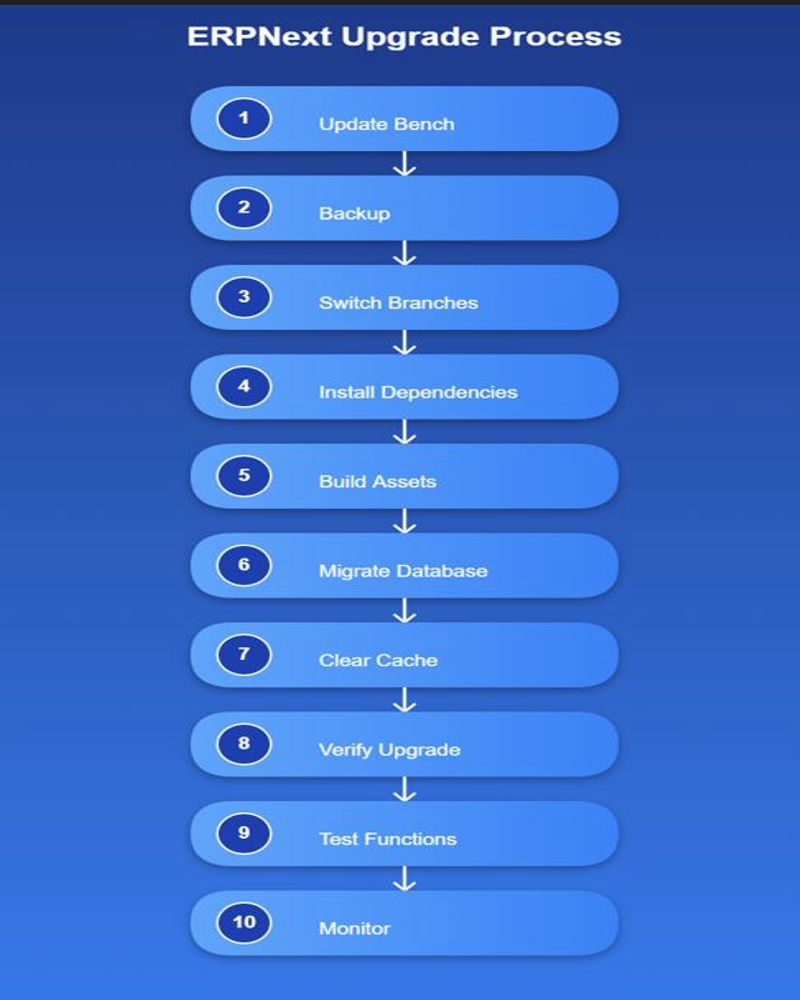
Now let’s walk through the actual upgrade process. These instructions assume you’re using Frappe Bench on a Linux server.
Step 1: Update Bench and Dependencies
cd ~/frappe-bench
pip3 install --upgrade frappe-bench
sudo apt update && sudo apt upgrade -y
Step 2: Backup Everything (Again)
bench --site [your-site-name] backup --with-files
Step 3: Switch to Version 16 Branch
Update Frappe Framework to v16:
bench switch-to-branch version-16 frappe --upgrade
Update ERPNext to v16:
bench switch-to-branch version-16 erpnext --upgrade
Update HRMS to v16 (if installed):
bench switch-to-branch version-16 hrms --upgrade
Update custom apps: For each custom app, switch to its v16-compatible branch:
bench switch-to-branch [branch-name] [app-name] --upgrade
Step 4: Install Dependencies
bench setup requirements
bench setup requirements --node
Step 5: Build Assets
bench build
Step 6: Migrate Database
bench --site [your-site-name] migrate
This is the critical step that updates your database schema. Duration varies from 15 minutes to 4 hours depending on database size. Don’t interrupt it.
See the official ERPNext upgrade notes.
Step 7: Clear Cache and Restart
bench --site [your-site-name] clear-cache
bench restart
Step 8: Verify the Upgrade
Check installed versions:
bench version
You should see: Frappe Framework: version-16, ERPNext: version-16.
Step 9: Test Critical Functions
Run through your testing checklist for Financial, Inventory, Manufacturing operations, User Interface, Integrations, and Reports.
Step 10: Monitor for Issues
Watch for problems in the first 24-48 hours. Check error logs:
bench --site [your-site-name] logs
Post-Upgrade Optimization
1. Rebuild Search Index
bench --site [your-site-name] build-search-index
2. Optimize Database
bench --site [your-site-name] mariadb
OPTIMIZE TABLE `tabSales Invoice`;
OPTIMIZE TABLE `tabStock Ledger Entry`;
3. Configure New Features: Set up customizable financial statements, enable stock reservation, and configure role-based field masking.
4. Update User Training.
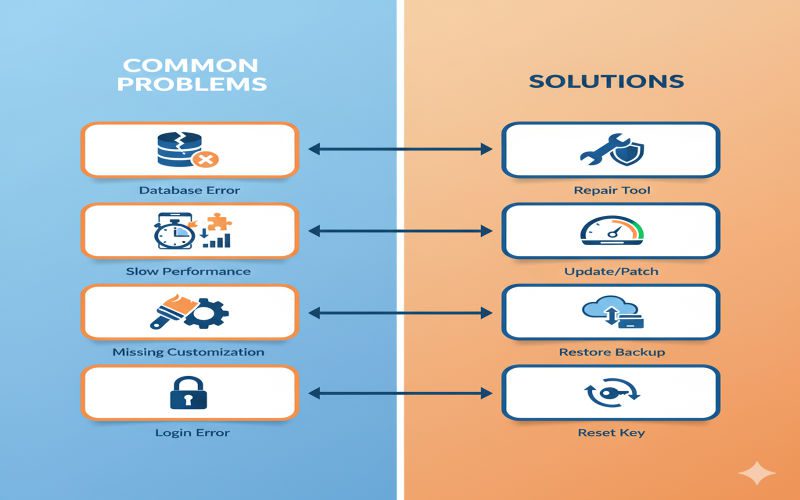
Troubleshooting Common Upgrade Issues
Issue 1: Migration Fails with Database Errors
Solutions: Check database integrity and repair corrupted tables using MariaDB commands.
Issue 2: Custom App Compatibility Problems
Solutions: Contact app developer, check app logs, or temporarily disable problematic app.
Issue 3: Performance Degradation
Solutions: Rebuild search index, clear cache, optimize database tables, or check server resources.
Issue 4: Missing Customizations
Solutions: Check if customizations are still in database via bench console. Re-apply or restore from backup if lost.
Issue 5: Login Problems
Solutions: Clear browser cache, clear site cache, or reset passwords.
When to Hire Professional Help
Complex Scenarios That Need Experts: Heavy customization (20+ DocTypes), Multiple custom apps, Large databases (>50GB), Critical business operations requiring zero-downtime, tight timelines.

TCB Infotech ERPNext v16 Upgrade Services
At TCB Infotech, we’ve successfully upgraded 50+ ERPNext installations with zero data loss and minimal downtime. Our service includes: Comprehensive pre-upgrade audit, Staging environment testing, Custom app compatibility fixes, Database migration with verification, Post-upgrade optimization, 30-day post-upgrade support.
If you need expert help beyond upgrades, explore our full range of ERPNext implementation services.
Ready to upgrade to ERPNext v16?
Contact TCB Infotech today for a free consultation and upgrade assessment.
Contact UsRollback Plan: If Things Go Wrong
Stop bench and restore database from backup:
bench switch-to-branch version-15 frappe --upgrade
bench switch-to-branch version-15 erpnext --upgrade
bench setup requirements
bench --site [your-site-name] restore /path/to/v15-backup.sql.gz
bench restart
Frequently Asked Questions
Q1: Can I skip from v14 directly to v16?
A: It’s not recommended. Upgrade to v15 first, verify everything works, then upgrade to v16. Skipping versions increases risk of migration failures.
Q2: How long will the upgrade take?
A: Small deployment: 2-4 hours, Medium: 4-8 hours, Large: 8-24 hours.
Q3: Will my users need retraining?
A: Minimal retraining needed. Plan for 30-60 minutes of orientation on new features.
Q4: What if my custom app isn’t v16-compatible yet?
A: Contact the app developer. If critical and won’t be ready soon, delay your upgrade.
Q5: Do I need to upgrade if v15 works fine?
A: Not immediately, but plan to upgrade within 6-12 months. ERPNext v15 will eventually stop receiving updates.
Q6: Can I test v16 without affecting production?
A: Yes. Set up a staging environment by restoring a production backup to a test server. This is strongly recommended.
Conclusion: Upgrade with Confidence
Upgrading to ERPNext v16 brings substantial benefits: 2x performance, powerful new features, and improved user experience. With proper planning, thorough testing, and careful execution, you can upgrade smoothly with minimal disruption.
Whether you’re upgrading yourself or working with an ERPNext implementation partner like TCB Infotech, following this guide ensures a successful transition to ERPNext v16. If you plan to upgrade ERPNext version 15 to 16, prepare staging early to avoid errors.